At its core, the Document Object Model (DOM) represents the structure of a webpage as a tree of objects. Each HTML element is a node, and manipulating these nodes directly affects what the user sees. Understanding this tree structure is fundamental because it lets you target, modify, or create elements dynamically without reloading the page.
When you access an element via JavaScript, you’re getting a live reference to that node. This means any changes you make are immediately reflected in the browser. For instance, modifying the textContent or the innerHTML properties updates the content inside an element, but they do so in different ways. textContent is safer and faster for plain text because it doesn’t parse HTML – it just replaces the text content as is. innerHTML, on the other hand, parses strings as HTML, which is powerful but can introduce security risks like XSS if you are not careful.
Another essential point is that DOM manipulation can be expensive in terms of performance. Each time you make a change, the browser might have to recalculate styles, perform layout, and repaint. Minimizing the number of direct DOM changes is important. Batch your updates or work with document fragments to reduce the overhead.
Traversing the DOM is also a key skill. You can navigate through parentNode, childNodes, nextSibling, and related properties to reach the nodes you want. Querying with methods like getElementById, getElementsByClassName, or querySelectorAll provides flexible ways to grab elements directly without manual traversal.
Here’s a simple example that demonstrates basic DOM access and modification:
const container = document.getElementById('container');
const firstChild = container.firstElementChild;

console.log(firstChild.textContent); // Read content

firstChild.textContent = 'Updated Text'; // Modify content

const newElement = document.createElement('div');
newElement.textContent = 'I am new here';

container.appendChild(newElement); // Append new element
Notice how simpler it is to create and insert new elements. However, keep in mind that each insertion triggers reflow and repaint. To avoid this, if you need to insert multiple elements, create a DocumentFragment and append all new elements to it first, then append the fragment once to the DOM.
Manipulating attributes is another common task. You can use setAttribute, getAttribute, and removeAttribute to control element properties like classes, IDs, or custom data attributes. Sometimes, directly modifying properties like element.id or element.className is more simpler and performant.
Events are tightly coupled with the DOM as well. Adding event listeners through addEventListener allows you to react to user interactions efficiently. Delegating events to a common ancestor can minimize the number of listeners attached, which is a neat performance optimization.
To sum up (briefly), the DOM is your interface to the document structure, and mastering its manipulation means understanding nodes, properties, traversal, and performance considerations. Without that foundation, any attempt to dynamically alter the page will be clumsy and inefficient.
As you begin creating complex UIs or animations, always profile DOM interactions and consider virtual DOM or canvas-based rendering when native DOM manipulation hits performance walls. The next step is efficiently appending and customizing new elements, where you’ll see these principles put into practice in a way that scales.
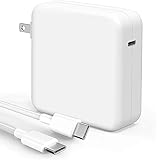
Mac Book Pro Charger - 118W USB C Charger Fast Charger Compatible with MacBook Pro/Air, M1 M2 M3 M4 M5, ipad Pro, Samsung Galaxy and More, Include Charge Cable
$26.83 (as of July 19, 2026 03:41 GMT +00:00 - More infoProduct prices and availability are accurate as of the date/time indicated and are subject to change. Any price and availability information displayed on [relevant Amazon Site(s), as applicable] at the time of purchase will apply to the purchase of this product.)efficiently appending and customizing new elements
When appending new elements, always prefer creating them fully configured before insertion. Every property assignment, attribute set, or event listener attachment performed before insertion avoids triggering multiple reflows. The DOM mutation cost is paid once, not repeatedly for each incremental change.
For example, consider creating a styled button with event handlers. Instead of appending an empty button and then updating it piece by piece, do all setup first.
const button = document.createElement('button');

button.textContent = 'Click Me';
button.className = 'btn primary';
button.setAttribute('type', 'button');

button.addEventListener('click', () => {
  console.log('Button clicked');
});
Once fully prepared, append the button to the desired container:
const container = document.getElementById('button-container');
container.appendChild(button);
If you need to add multiple elements, use a DocumentFragment. That is a lightweight container that lives in memory and does not cause reflows when manipulated. After building the fragment, append it once to the DOM.
const fragment = document.createDocumentFragment();

for (let i = 0; i < 100; i++) {
  const item = document.createElement('li');
  item.textContent = Item ${i};
  fragment.appendChild(item);
}

const list = document.getElementById('item-list');
list.appendChild(fragment);
Customizing elements goes beyond text and attributes. You can manipulate styles directly via the style property, which is a CSSStyleDeclaration object. That is more efficient than setting style.cssText repeatedly or toggling classes excessively.
const box = document.createElement('div');

box.style.width = '200px';
box.style.height = '100px';
box.style.backgroundColor = '#3498db';
box.style.borderRadius = '8px';

document.body.appendChild(box);
When working with classes, use the classList API. It provides methods like add, remove, toggle, and contains that are both semantic and performant:
const card = document.createElement('div');

card.classList.add('card', 'shadow');

if (!card.classList.contains('active')) {
  card.classList.add('active');
}

card.classList.toggle('hidden', false); // ensure visible
For more complex customization, cloning existing nodes with cloneNode(true) can save time. This duplicates the node and its subtree, including attributes and children. You can then tweak the clone before appending it.
const template = document.getElementById('template-card');
const newCard = template.cloneNode(true);

newCard.id = 'card-123';
newCard.querySelector('.title').textContent = 'Custom Title';

document.body.appendChild(newCard);
Remember that event listeners are not cloned automatically, so if the cloned node requires interaction, either delegate events or reattach listeners explicitly.
Finally, when setting attributes, prefer direct property assignments if available, as they bypass attribute parsing and are faster. For example, use input.checked = true instead of input.setAttribute('checked', ''). This is especially relevant for form controls and media elements.
const checkbox = document.createElement('input');
checkbox.type = 'checkbox';
checkbox.checked = true; // preferred over setAttribute for boolean attributes

document.body.appendChild(checkbox);