So you want to render something in 3D on a web page. You’ve heard of WebGL, and maybe you’ve even peeked at the API and ran away screaming. I don’t blame you. It’s… verbose. That’s where libraries like Three.js come in, to save our collective sanity by wrapping all that low-level gobbledygook in a sensible, object-oriented API.
Before you can even think about spinning cubes or photorealistic teapots, you need to set the stage. Literally. In the world of Three.js, this boils down to three non-negotiable, absolutely essential components: the Scene, the Camera, and the Renderer. You cannot do anything without these three. It’s the holy trinity of your 3D world.
Think of it like making a movie. The Scene is your film set or your stage. It’s the virtual universe, an empty, black void where you’ll place all your lights, your actors, your props-everything you want to be visible. On its own, the scene is just a container. It doesn’t do anything; it just holds things. Without a scene, your objects are homeless, floating in a digital limbo with no place to exist.
Next, you need a Camera. Your scene might be chock-full of amazing 3D creations, but without a camera, nobody can see them. The camera is your eye in this virtual world. It defines the vantage point and the perspective. Are you looking down from above like a god in a strategy game? Or are you seeing the world through the eyes of a character in first-person? That’s the camera’s job. It dictates what gets rendered and from what angle.
Finally, the linchpin that ties it all together: the Renderer. This is the workhorse. The renderer takes the scene you’ve built and the viewpoint from your camera and does the heavy lifting of actually drawing it all onto your screen. It’s the artist that paints the picture based on your instructions. It translates the abstract 3D data into the 2D pixels that your browser can display. No renderer, no picture. It’s that simple.
Let’s see what this foundational boilerplate looks like in code. Every Three.js project you ever create will start with something that looks almost exactly like this.
// 1. The Scene: our virtual world
const scene = new THREE.Scene();

// 2. The Camera: our viewpoint
const fov = 75; // Field of View, in degrees
const aspect = window.innerWidth / window.innerHeight; // Aspect Ratio
const near = 0.1; // Near clipping plane
const far = 1000; // Far clipping plane
const camera = new THREE.PerspectiveCamera(fov, aspect, near, far);

// We need to move the camera back from the origin (0,0,0) or we won't see anything
camera.position.z = 5;

// 3. The Renderer: the engine that draws the scene
const renderer = new THREE.WebGLRenderer();
renderer.setSize(window.innerWidth, window.innerHeight);

// Add the renderer's canvas element to our page
document.body.appendChild(renderer.domElement);
The PerspectiveCamera takes a few arguments that can seem intimidating, but they map directly to real-world camera concepts. The field of view (FOV) is basically how “wide” the camera’s lens is. A small number is like a telephoto lens; a large number is a fisheye. The aspect ratio should almost always be the width of your render area divided by its height, otherwise your scene will look stretched or squashed, like watching a widescreen movie on an old square TV. The last two, the near and far clipping planes, define the visible depth range. Anything closer than near or farther than far simply won’t be rendered. This is a crucial optimization; you don’t want your GPU wasting cycles trying to draw a mountain that’s a million miles away.
The renderer is then configured to the size you want your final image to be and, crucially, appended to the DOM. That renderer.domElement is a element. That’s right, under the hood, all this 3D magic is being painted onto a plain old HTML canvas. With these three pieces in place, you have a blank stage, a camera pointed at it, and a renderer ready to draw whatever the camera sees. It’s a black screen, sure, but it’s a black screen full of potential. Now we just need to give it something to render.

amBand Bands Compatible with Apple Watch 9/8/7/6/5/4 & SE 3/2/1 45mm/44mm Case for Men, M1 Sport Series Rugged Case Protective Cover for iWatch SE3/SE2/6/SE/5/4 44/45 mm Men Black
$19.54 (as of July 20, 2026 03:55 GMT +00:00 - More infoProduct prices and availability are accurate as of the date/time indicated and are subject to change. Any price and availability information displayed on [relevant Amazon Site(s), as applicable] at the time of purchase will apply to the purchase of this product.)A mesh is just a shape and a skin
So we’ve set the stage, but the stage is empty. An empty stage is boring. We need actors, props, things to look at. In Three.js, any visible object you put in your scene is called a Mesh. A car, a planet, a character, a simple spinning cube-at the end of the day, they are all Meshes. A Mesh is the fundamental object that you can actually see and interact with.
Let’s be very clear about this: a Mesh is not a monolithic, magical thing. It’s surprisingly simple, really. It’s just a combination of two other things: a Geometry and a Material. You cannot have a visible Mesh without both. It’s a package deal. One defines the shape, the other defines the appearance of the surface of that shape.
The Geometry is the skeleton. It’s the collection of vertices (points in 3D space) and faces (the flat surfaces that connect those points) that describe the object’s structure. Think of it as a wireframe model. It has no color, no texture, no substance. It is pure, mathematical form. Thankfully, you don’t have to manually define the thousands of vertices for a sphere. Three.js comes with a library of primitive geometries to save you from that particular brand of madness.
For example, let’s define the geometry for a simple cube.
// The Geometry (the shape)
// This creates a cube with width, height, and depth of 1 unit.
const geometry = new THREE.BoxGeometry(1, 1, 1);
We now have the abstract concept of a cube’s structure stored in a variable. It’s a ghost in the machine, an invisible wireframe waiting for a skin.
The Material is that skin. It’s what you wrap around the geometry to give it an actual appearance. Is the object a flat red color? Is it metallic and shiny? Is it transparent like glass? Does it have a wood grain texture? All of these surface properties are defined by the Material. It’s the paint, the fabric, the chrome plating you apply to your skeleton. For our first object, let’s use the simplest material available: MeshBasicMaterial. This material is not affected by lights, which is perfect for now because we haven’t added any lights yet. It just renders as a solid, flat color.
// The Material (the skin)
// We'll make it a nice, vibrant green. Colors are hex values.
const material = new THREE.MeshBasicMaterial({ color: 0x00ff00 });
Now we have the two required components: a shape and a skin. The final step is to combine them into a single Mesh object. This is as simple as passing both the geometry and the material to the Mesh constructor.
// The Mesh (the final object)
// It's the combination of the geometry and the material.
const cube = new THREE.Mesh(geometry, material);
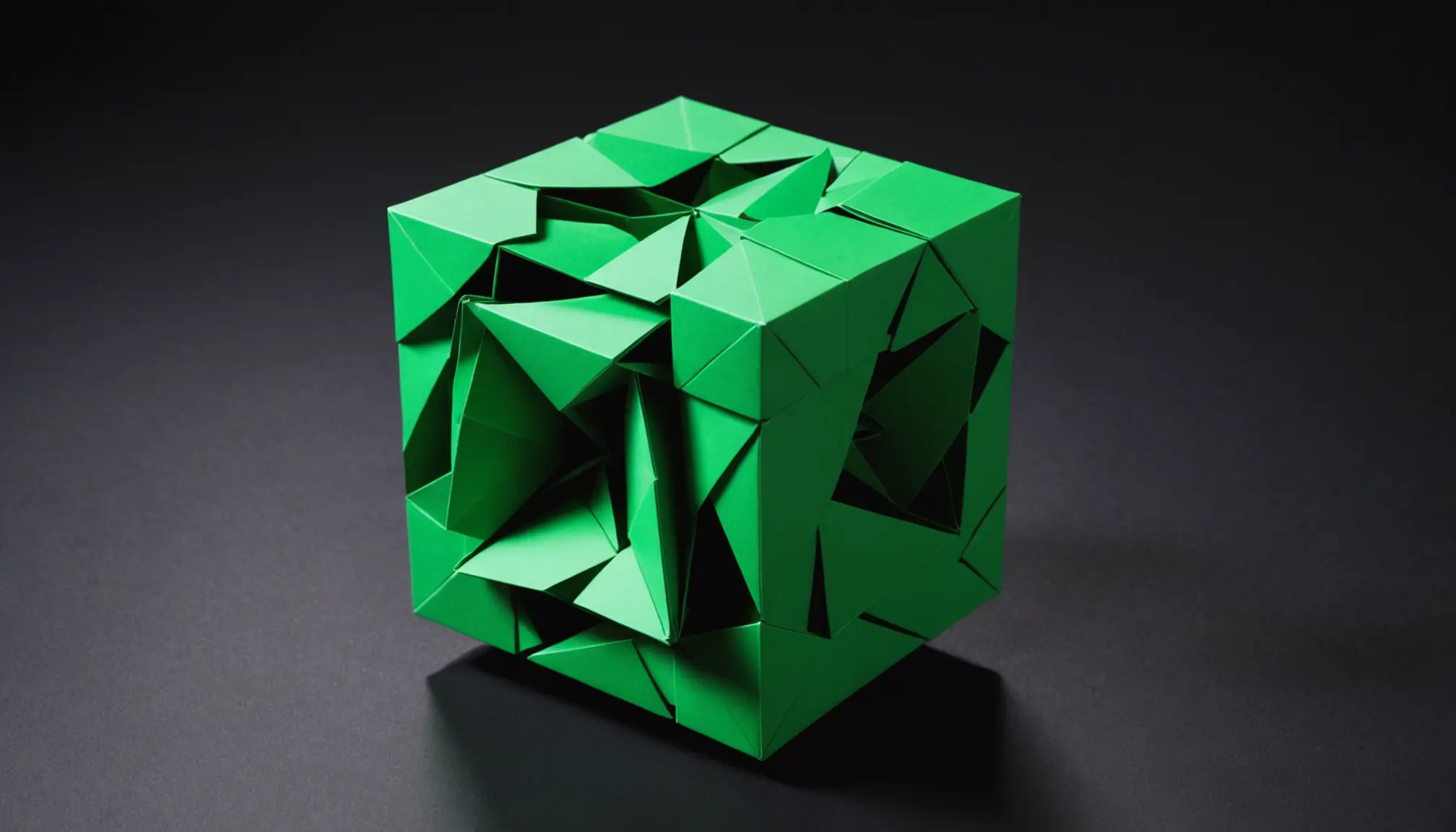
We have a cube! A green cube, to be precise. But if you were to run the code right now, you would still see nothing. Why? Because while our cube object exists in JavaScript memory, we haven’t actually placed it on our stage. The Scene object is the container for everything in our 3D world. If an object isn’t added to the scene, it simply doesn’t exist as far as the renderer is concerned. Let’s add it.
// Add the cube to the scene
scene.add(cube);
With that one line, our cube is now part of the world. It’s sitting at the origin point (0,0,0), right where our camera is looking. If you have the boilerplate from the last section, you will now see a green square in the middle of your screen. It’s a square because you’re looking at the 3D cube head-on. To appreciate its three-dimensional nature, we need to make it move. We need to start the animation loop.
The hamster wheel that powers your world
So you have a scene, a camera, and a renderer. You’ve even created a green cube and added it to the scene. You run the code and… voilà! A static green square. Thrilling. To bring this world to life, you need to understand the most critical concept in any real-time graphics application: the render loop. This is the engine, the beating heart, the hamster wheel that continuously powers your 3D world.
Rendering isn’t a “fire and forget” operation. Calling renderer.render(scene, camera) once just gives you a single snapshot, a single frame of your scene at that exact moment in time. If you want to see animation, or respond to user input, or have objects move on their own, you need to take a new snapshot over and over and over again, many times per second. This is the loop. It’s a perpetual cycle of “update object positions, then render the scene, then repeat.”
Your first instinct might be to use something like setInterval. Don’t. Just… don’t. While it might seem like a good idea, it’s a terrible one for animation. setInterval is dumb. It will try to run your code at a fixed interval, regardless of what the browser is doing. Is the user on another tab? Too bad, setInterval is still chugging away, burning CPU cycles for no reason. Is the browser busy with other tasks? Tough luck, your animation will stutter and jerk because the timing is completely disconnected from the browser’s own painting cycle.
The modern, correct, and only way you should be doing this is with requestAnimationFrame. This browser API is purpose-built for exactly this kind of work. It’s a polite request to the browser: “Hey, when you’re about to redraw the screen for the next frame, please run this function for me first.” The browser then schedules your function to run at the most optimal time, usually right before the screen refresh. This has several massive advantages. It’s synchronized with the display’s refresh rate (typically 60 times per second), which results in buttery-smooth animation. Even better, it’s smart. If the user switches to another tab, the browser will pause the loop automatically, saving precious battery life and CPU power. It’s a win-win.
Let’s build this hamster wheel. We’ll create a function, let’s call it animate, that will contain everything we want to do on every single frame. Inside this function, we’ll make our cube rotate a little bit, then we’ll tell the renderer to draw the updated scene. The final, crucial step is to call requestAnimationFrame again from within the animate function itself, passing animate as the function to be called next time. This creates the perpetual loop.
function animate() {
    // This function gets called on every frame
    requestAnimationFrame(animate);

    // Let's make our cube spin!
    // We're adding a small amount to its rotation on the X and Y axes each frame.
    cube.rotation.x += 0.01;
    cube.rotation.y += 0.01;

    // Render the scene with the camera
    renderer.render(scene, camera);
}

// Kick off the loop for the first time
animate();
That’s it. That’s the core of every interactive Three.js application. A function that updates the state of the world (in this case, the cube’s rotation) and then renders it. This function then schedules itself to be run again for the next frame. When you run this code, you’ll no longer see a static green square. You’ll see a glorious, spinning, three-dimensional green cube. You’ve breathed life into the machine.
This loop is where everything happens. Any changes you want to see over time must be implemented inside this animate function. Want to move the camera? Change its position inside the loop. Want an object to follow the mouse? Update its coordinates based on mouse events inside the loop. It’s the central nervous system of your application. Every frame, it processes the new state of the world and commands the renderer to draw it. Without this continuous cycle, you just have a static, lifeless diorama. With it, you have a world. Now, our world is a bit spartan. It’s just a lonely cube spinning in a black void. It’s also unnaturally lit; our MeshBasicMaterial ignores all lighting, which is why we can see it at all. To make things look more realistic, we need to talk about lights and more advanced materials.