
jQuery simplifies the process of working with input elements in the DOM. Using jQuery, you can easily manipulate input fields, whether they are text boxes, radio buttons, or checkboxes. For instance, selecting input elements can be done succinctly with a selector.
$('input[type="text"]').each(function() {
  console.log($(this).val());
});
This snippet iterates over all text input elements and logs their current values. jQuery’s ability to chain methods allows for powerful, concise code. You can also access input elements by their IDs or classes easily, making it simpler to work with various form elements.
$('#myInput').on('focus', function() {
  $(this).css('background-color', '#e0f7fa');
});
Here, we add a focus event listener that changes the background color of the input field when it’s selected. This kind of interaction is essential for enhancing user experience without overwhelming the user with additional complexity.
Additionally, jQuery provides utility functions to handle various input types seamlessly. For example, when dealing with checkboxes or radio buttons, you can retrieve their states directly using jQuery’s methods.
$('input[type="checkbox"]').each(function() {
  if ($(this).is(':checked')) {
    console.log($(this).val() + ' is checked');
  }
});
This code checks each checkbox and logs the value of those that are checked. Understanding how to manipulate and retrieve values of input elements especially important for building interactive web applications.
As you dive deeper into jQuery, remember that input elements can also be dynamically created or removed from the DOM. Handling these dynamic elements requires a slightly different approach, especially for event binding.
$(document).on('change', 'input[type="text"]', function() {
  console.log('Text input changed: ' + $(this).val());
});
This example uses event delegation, enabling you to listen for events on elements that may not exist at the time of binding. It’s a powerful technique for managing dynamically generated content while ensuring that your event handlers remain intact.
It’s also important to consider validation and sanitization of user inputs. While jQuery simplifies the process of gathering input values, ensuring that these values are valid and safe for processing is a key aspect of web development.
function validateInput(input) {
  return input.length > 0 && /^[a-zA-Z0-9]+$/.test(input);
}
This validation function checks that the input is not empty and contains only alphanumeric characters. Implementing such checks early in your application can prevent issues down the line.
Handling input values effectively requires a blend of proper event management, validation, and a solid understanding of jQuery’s capabilities. As you become more familiar with these concepts, the way you approach input management will evolve, leading to cleaner, more efficient code.
With the basics in place, you can start exploring more sophisticated techniques for managing input values, such as using plugins or custom validation libraries…
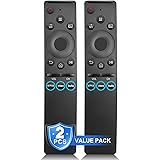
2-Pack Replacement Remote for Samsung Smart TV – No Setup, Instant Response | 2-pack value, works with most Samsung TVs, instant response, streaming shortcut keys, built to last
$11.67 (as of July 23, 2026 04:44 GMT +00:00 - More infoProduct prices and availability are accurate as of the date/time indicated and are subject to change. Any price and availability information displayed on [relevant Amazon Site(s), as applicable] at the time of purchase will apply to the purchase of this product.)Retrieving values with the val method
When working with input values in jQuery, it’s beneficial to adopt best practices that not only improve code readability but also enhance maintainability. One such practice is to encapsulate input handling logic within functions, allowing for reusable code that can be invoked as needed.
function getInputValue(selector) {
  return $(selector).val();
}
This function retrieves the value of an input element based on the provided selector. By abstracting this logic, you can easily manage input retrieval across different parts of your application without redundancy.
Another important aspect is managing input states effectively. For example, you might want to enable or disable a submit button based on whether required fields have been filled out correctly.
$('input').on('input', function() {
  const allFilled = $('input[required]').filter(function() {
    return $(this).val() === '';
  }).length === 0;
  $('#submitButton').prop('disabled', !allFilled);
});
This code listens for input events on all input fields and checks if all required fields are filled out. If they are, it enables the submit button; otherwise, it remains disabled. This kind of dynamic feedback enhances the user experience by guiding them through the form completion process.
Additionally, consider grouping related input elements logically. When handling forms with multiple inputs, it is often useful to work with data as a single object rather than individual fields. This can be achieved by serializing form data.
$('#myForm').on('submit', function(event) {
  event.preventDefault();
  const formData = $(this).serializeArray();
  console.log(formData);
});
This snippet captures the form submission event, prevents the default behavior, and serializes the form data into an array of objects. This technique simplifies data handling, especially when sending data to a server via AJAX.
Moreover, when designing forms, employing placeholder attributes can provide users with context about the expected input, reducing errors. However, be cautious not to rely solely on placeholders for instructions, as they can disappear when the user starts typing.
Using placeholders alongside proper labels enhances accessibility and usability. Always ensure that your forms are easy to use and intuitive, as this can significantly impact user engagement.
As you integrate these best practices into your jQuery input management, the overall architecture of your application will become more robust and easier to navigate, allowing for future scalability and improvements…
Handling events for dynamic input
When working with dynamic input elements, it’s crucial to ensure that your event handlers are appropriately set up to react to user interactions. jQuery provides various methods to bind events, but understanding how to manage these bindings effectively is key to maintaining performance and responsiveness.
$(document).on('click', '.dynamic-button', function() {
  alert('Button clicked!');
});
This example demonstrates how to attach a click event to buttons that may be added to the DOM after the initial page load. Using event delegation with $(document).on() allows you to handle events for elements that are dynamically created, which is essential in modern web applications where content can change frequently.
As you work with dynamic inputs, consider implementing custom events to encapsulate specific behaviors related to your input elements. This approach can lead to more organized and maintainable code.
$.fn.triggerCustomEvent = function() {
  this.trigger('customEvent', { someData: 'value' });
};
This jQuery plugin method allows you to define a custom event that can be triggered on any jQuery object. You can then listen for this event elsewhere in your code, creating a clear separation of concerns and enhancing code clarity.
$('.dynamic-input').on('customEvent', function(event, data) {
  console.log('Custom event triggered with data: ', data);
});
By using custom events, you can streamline the interaction logic associated with dynamic inputs. This is especially useful when multiple components may need to respond to the same user action, promoting a more modular design.
Furthermore, managing state for dynamic inputs is another critical aspect. Consider using data attributes to store relevant information directly within the elements themselves.
$('.dynamic-input').data('originalValue', $(this).val());
This line sets a data attribute that can help track the original value of an input, which can be useful for comparison during validation or change detection. Accessing these data attributes is simpler.
let originalValue = $(this).data('originalValue');
Incorporating data attributes into your dynamic input management strategy allows for enhanced interactivity and state management, leading to a more responsive user interface. Additionally, consider the performance implications of your event bindings and how they can affect user experience.
As your application grows, keeping track of event handlers and ensuring they’re not duplicated or left dangling is vital. Use jQuery’s off() method to remove event handlers when they’re no longer needed.
$(document).off('click', '.dynamic-button');
This command effectively cleans up event listeners, preventing memory leaks and ensuring that your application remains efficient as it scales. Overall, mastering event handling for dynamic inputs will significantly enhance the user experience by providing immediate feedback and interaction.
As you design your forms and input elements, always prioritize clarity and usability while maintaining a focus on performance. The combination of well-structured event handling and thoughtful user input management will lead to more robust applications that are easier to maintain and extend…
Best practices for input value management
When managing input values, it’s essential to adopt strategies that ensure consistency and reliability across your application. One best practice is to centralize your input management logic, making it easier to maintain and update as your application evolves.
function setInputValue(selector, value) {
  $(selector).val(value);
}
This function allows you to set the value of an input element based on its selector. By using a centralized function, you minimize redundancy and potential errors in your code, making it easier to manage input values throughout your application.
Another important aspect of input management is to handle user feedback effectively. You can provide immediate visual cues to users based on their input, which can enhance usability significantly. For instance, you might want to indicate when a user has entered an invalid value.
$('input[type="text"]').on('input', function() {
  if ($(this).val().length < 3) {
    $(this).addClass('is-invalid');
  } else {
    $(this).removeClass('is-invalid');
  }
});
This snippet adds or removes an invalid class based on the length of the input, which will allow you to style the input field accordingly. Such real-time feedback helps users correct their input before form submission.
Additionally, consider implementing debouncing techniques when handling input events that may fire frequently, such as keypresses. This helps reduce the number of times your event handlers are executed, leading to better performance.
let debounceTimer;
$('input[type="text"]').on('input', function() {
  clearTimeout(debounceTimer);
  debounceTimer = setTimeout(() => {
    console.log('Input value:', $(this).val());
  }, 300);
});
In this example, the event handler waits for 300 milliseconds after the last input before executing, which can significantly reduce the load on your event processing logic.
Moreover, when dealing with forms, consider using the reset method to clear all input fields efficiently. This can be particularly useful after a successful submission or when resetting a form for re-use.
$('#myForm').on('reset', function() {
  console.log('Form has been reset');
});
This event handler logs a message whenever the form is reset, enabling you to implement any additional logic needed at that time, such as clearing validation messages or resetting custom states.
Furthermore, it’s vital to ensure that input data is correctly formatted before processing. You might want to enforce specific formats for user inputs, such as phone numbers or dates, using regular expressions.
function formatPhoneNumber(input) {
  return input.replace(/D/g, '').replace(/(d{3})(d{3})(d{4})/, '($1) $2-$3');
}
This function formats a plain number into a standard phone number format, helping maintain consistency in the data collected from users.
Implementing these best practices not only improves code quality but also enhances the overall user experience. The more intuitive and responsive your forms are, the more likely users will engage with your application effectively.
As you refine your input management strategies, always keep an eye on performance and user interaction patterns. The synergy between efficient code and easy to use design will set your applications apart in terms of usability and maintainability.