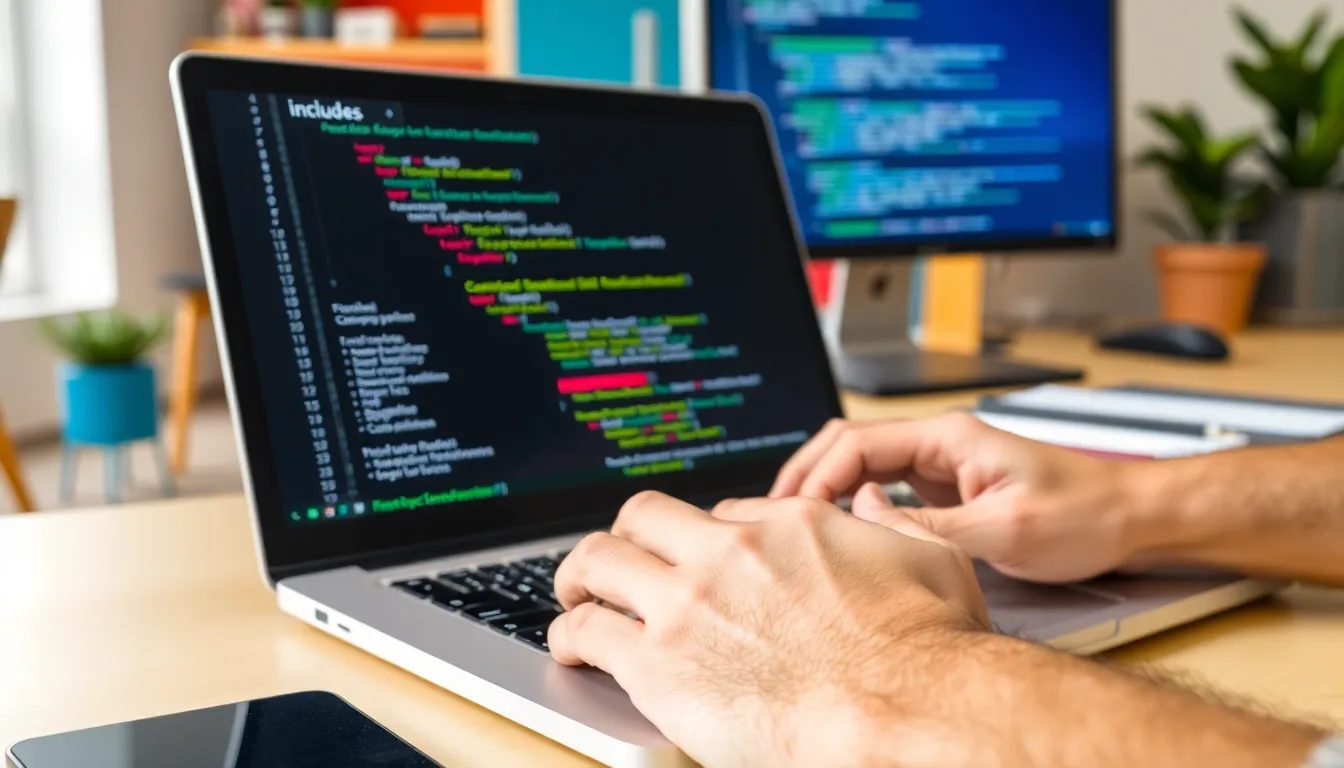
The Canvas API provides a powerful way to render graphics on the web. Understanding its fundamentals is important for any developer looking to create dynamic and interactive content. At its core, the Canvas API allows you to draw shapes, text, images, and even animations using JavaScript.
To start with the Canvas API, you need to create a canvas element in your HTML. Here’s a simple example:
<canvas id="myCanvas" width="500" height="500"></canvas>
Once you have your canvas set up, you can access its drawing context in JavaScript. The 2D context is commonly used for 2D rendering. Here’s how to obtain it:
const canvas = document.getElementById('myCanvas');
const ctx = canvas.getContext('2d');
With the context in hand, you can begin drawing. For instance, to draw a rectangle, you would use the following code:
ctx.fillStyle = 'blue';
ctx.fillRect(50, 50, 100, 100);
This code sets the fill color to blue and draws a filled rectangle at coordinates (50, 50) with a width and height of 100 pixels. The Canvas API supports various shapes and styles, allowing for intricate designs.
Working with paths is another essential aspect. You can create complex shapes by defining paths. Here’s an example of how to create a triangle:
ctx.beginPath();
ctx.moveTo(100, 100);
ctx.lineTo(150, 50);
ctx.lineTo(200, 100);
ctx.closePath();
ctx.fillStyle = 'red';
ctx.fill();
In addition to basic shapes, the Canvas API also allows for transformations. You can translate, rotate, and scale your drawings. For instance, to rotate the canvas:
ctx.save(); // Save the current state
ctx.translate(150, 150); // Move the origin to the center of the triangle
ctx.rotate(Math.PI / 4); // Rotate by 45 degrees
ctx.fillRect(-50, -50, 100, 100); // Draw rectangle centered at origin
ctx.restore(); // Restore the original state
Understanding how to manipulate the canvas effectively is key to creating engaging graphics. You can combine these techniques to produce animations or interactive experiences. For example, you might want to create an animation loop:
function draw() {
  ctx.clearRect(0, 0, canvas.width, canvas.height); // Clear canvas
  // Drawing code here...
  requestAnimationFrame(draw); // Call draw again for the next frame
}
draw(); // Start the animation
By mastering these fundamentals, you set the groundwork for more advanced techniques like image manipulation and rendering optimization. The Canvas API can be quite performant when used correctly, allowing for rich graphics even on lower-end devices. Next, we need to explore image scaling techniques, which are vital for ensuring your graphics maintain quality across different resolutions.
Amazon Echo Dot (newest model) - Vibrant sounding speaker, Designed for Alexa+, Great for bedrooms, dining rooms and offices, Charcoal
$49.99 (as of July 19, 2026 03:41 GMT +00:00 - More infoProduct prices and availability are accurate as of the date/time indicated and are subject to change. Any price and availability information displayed on [relevant Amazon Site(s), as applicable] at the time of purchase will apply to the purchase of this product.)Implementing image scaling techniques
Image scaling is an important technique when working with the Canvas API. It ensures that images maintain their quality when resized. This can be particularly important for responsive design, where images need to adapt to various screen sizes without losing clarity.
To scale an image on the canvas, you first need to load the image. Here’s how to do that:
const image = new Image();
image.src = 'path/to/your/image.png';
image.onload = function() {
  ctx.drawImage(image, 0, 0); // Draw the image at the default size
};
Once the image is loaded, you can scale it during the drawing process. The drawImage method allows you to specify the width and height for the drawn image, effectively scaling it:
ctx.drawImage(image, 0, 0, image.width * 0.5, image.height * 0.5); // Scale to 50%
This code scales the image down to 50% of its original size. You can also scale up by providing greater width and height values. However, keep in mind that scaling up can lead to pixelation if the original image resolution is not high enough.
For more control over the scaling process, you can also use additional parameters to define the source rectangle of the image:
ctx.drawImage(image, sourceX, sourceY, sourceWidth, sourceHeight, destX, destY, destWidth, destHeight);
This allows you to select a specific portion of the image to draw, which can be useful for cropping or creating thumbnails. For example:
ctx.drawImage(image, 10, 10, 200, 200, 0, 0, 100, 100); // Draw a 100x100 portion of the image
Keep in mind that when scaling images, the aspect ratio should be maintained to avoid distortion. You can calculate the appropriate dimensions based on the original width and height:
const scaleFactor = 0.5; // For example, scale to 50%
const newWidth = image.width * scaleFactor;
const newHeight = image.height * scaleFactor;
ctx.drawImage(image, 0, 0, newWidth, newHeight);
Another technique related to image scaling is the use of nearest-neighbor interpolation for pixel art or low-resolution images. By setting the image smoothing property, you can prevent the browser from applying anti-aliasing:
ctx.imageSmoothingEnabled = false; // Disable smoothing
ctx.drawImage(image, 0, 0, newWidth, newHeight);
This will ensure that the pixels remain sharp and clear, preserving the aesthetic of pixel art. It’s essential to consider the context of your graphics when deciding on the scaling method.
As you implement these scaling techniques, remember that performance can vary based on the size and complexity of the images. Testing across devices very important to ensure a consistent user experience. The next step is mastering cropping methods, which will enable you to manipulate images even further for precise output.
Mastering cropping methods for precise output
When it comes to cropping images on the canvas, the Canvas API provides a simpler approach that allows you to define specific areas of an image to render. This can be particularly useful for creating dynamic visual content where only a portion of an image is relevant.
To crop an image, you can use the drawImage method with specific parameters that define the source rectangle from the image. Here’s how you can do that:
const image = new Image();
image.src = 'path/to/your/image.png';
image.onload = function() {
  const sourceX = 50; // X coordinate of the top-left corner of the cropping rectangle
  const sourceY = 50; // Y coordinate of the top-left corner of the cropping rectangle
  const sourceWidth = 100; // Width of the cropping rectangle
  const sourceHeight = 100; // Height of the cropping rectangle
  ctx.drawImage(image, sourceX, sourceY, sourceWidth, sourceHeight, 0, 0, sourceWidth, sourceHeight);
};
This code will crop a 100×100 pixel area from the image starting at coordinates (50, 50) and draw it at the top-left corner of the canvas. By adjusting the source coordinates and dimensions, you can crop different parts of the image as needed.
For more precise control, especially when dealing with images of different aspect ratios, you might want to calculate the cropping dimensions dynamically based on the original image size:
const aspectRatio = image.width / image.height;
const cropWidth = 200; // Desired crop width
const cropHeight = cropWidth / aspectRatio; // Maintain aspect ratio
ctx.drawImage(image, sourceX, sourceY, cropWidth, cropHeight, 0, 0, cropWidth, cropHeight);
Using dynamic calculations ensures that your cropped images maintain a consistent appearance across different content. Furthermore, you can also implement cropping based on user interactions, such as dragging a selection box on the canvas.
To facilitate user-defined cropping, you may want to implement mouse events to track the selection area. Here’s an example of how to handle mouse events:
let isDragging = false;
let startX, startY;

canvas.addEventListener('mousedown', (event) => {
  isDragging = true;
  startX = event.offsetX;
  startY = event.offsetY;
});

canvas.addEventListener('mousemove', (event) => {
  if (isDragging) {
    const mouseX = event.offsetX;
    const mouseY = event.offsetY;
    ctx.clearRect(0, 0, canvas.width, canvas.height); // Clear previous drawings
    ctx.drawImage(image, 0, 0); // Redraw the image
    ctx.strokeStyle = 'red';
    ctx.strokeRect(startX, startY, mouseX - startX, mouseY - startY); // Draw selection rectangle
  }
});

canvas.addEventListener('mouseup', (event) => {
  isDragging = false;
  const endX = event.offsetX;
  const endY = event.offsetY;
  const cropWidth = endX - startX;
  const cropHeight = endY - startY;
  ctx.drawImage(image, startX, startY, cropWidth, cropHeight, 0, 0, cropWidth, cropHeight); // Crop on release
});
This implementation allows users to click and drag to create a selection rectangle, which is then used to crop the image when the mouse is released. This approach enhances interactivity and provides a more engaging experience.
As you master cropping techniques, consider the implications of different image formats and their transparency features. PNGs, for example, can allow for seamless cropping without background artifacts. It’s essential to understand the capabilities of the images you are working with to achieve the desired output effectively.
Finally, always test your cropping functionality across various devices and screen sizes to ensure that your application behaves as expected. This level of precision not only improves the user experience but also enhances the overall quality of your graphics work within the Canvas API.